← Back To Nivium

How It Works

From field capture to finished profile

Nivium gives you two ways to start in the field: Voice Notes for speaking your observations and Manual Data Entry for typing them in. Both paths help you build a snow profile on your phone, review it, and save it when it looks right.

Step 1

Open Nivium Home

Choose the path that fits the way you want to work.

  • Voice Notes: Speak your observations into the app.
  • Manual Data Entry: Build the profile one section at a time.
  • Profile Defaults: Save your observer name, organization, and elevation unit if you want faster setup on new profiles.
Nivium home screen showing Voice Notes, Manual Data Entry, Archive, and Profile Defaults.
Step 2

Capture Voice Notes

  • Voice Notes: Record your observations directly in the app while you are in the field.
  • Press Record Audio and speak your observations by following the fieldcard in a simple top-to-bottom order.
  • You can save your current coordinates and elevation before you record if you want those details filled in.
  • When you stop recording, Nivium turns the recording into a draft for review before you generate the profile.
  • If you do not have service, the recording is saved in Archive on your phone and can be drafted later.
Nivium Voice Notes capture screen.
Step 3

Manually build the profile

  • Manual Data Entry works without reception.
  • Open each section and enter the details by hand.
  • Work through Observation Details, Snowpack Layers, Temperatures, Stability Tests, and Notes.
  • Use Current Location if you want help filling Lat / Long and Elevation.
  • Load Sample shows a finished example if you want to see how a profile looks.
Nivium Manual Data Entry screen.
Step 4

Review and generate the profile

  • For Voice Notes, Nivium opens a review screen before the final profile is created.
  • Check the important values, then press Generate Profile when everything looks right.
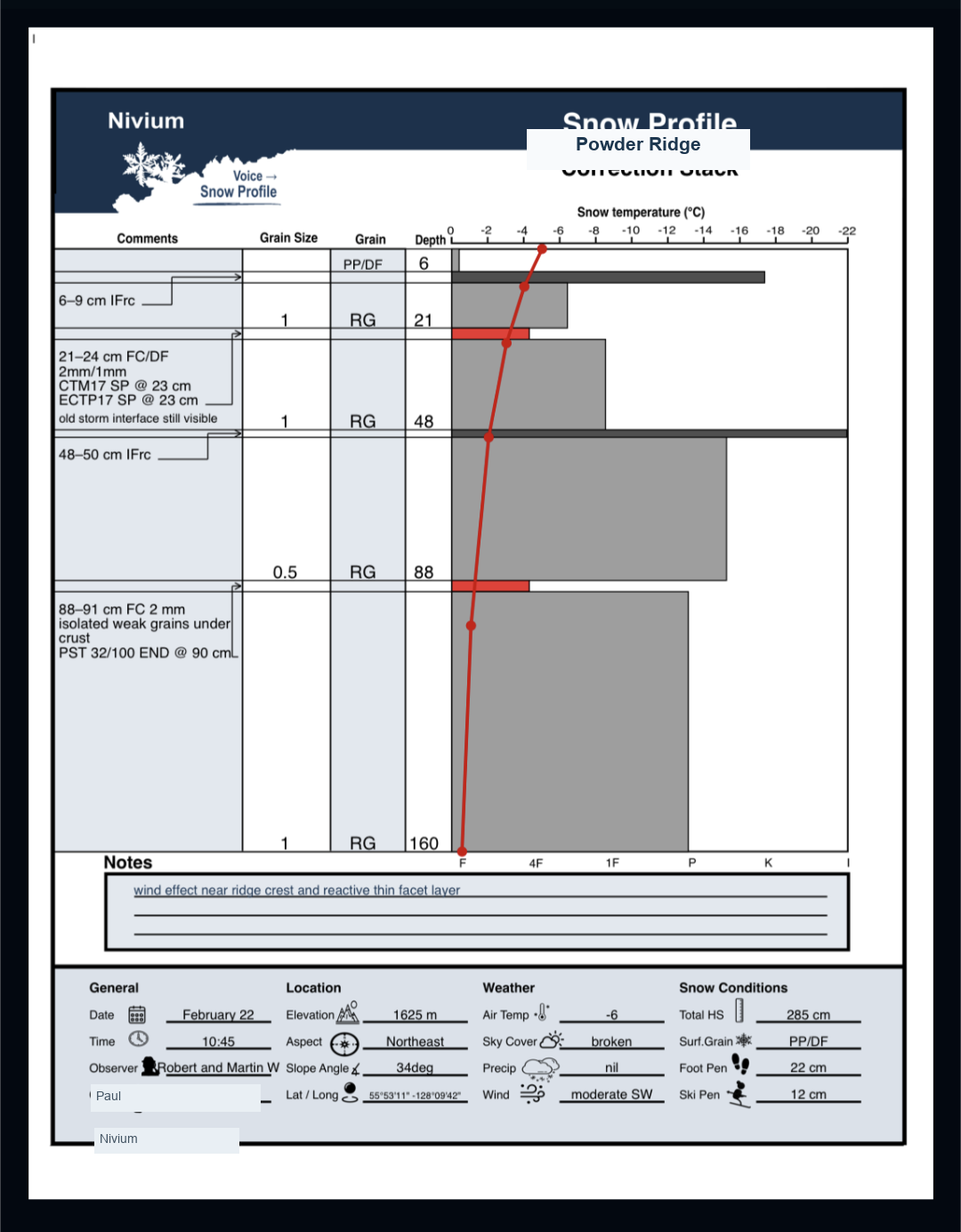
  • The final profile is then created and opened on your phone.
Rendered Nivium plotted profile output.
Step 5

Archive, share, and print

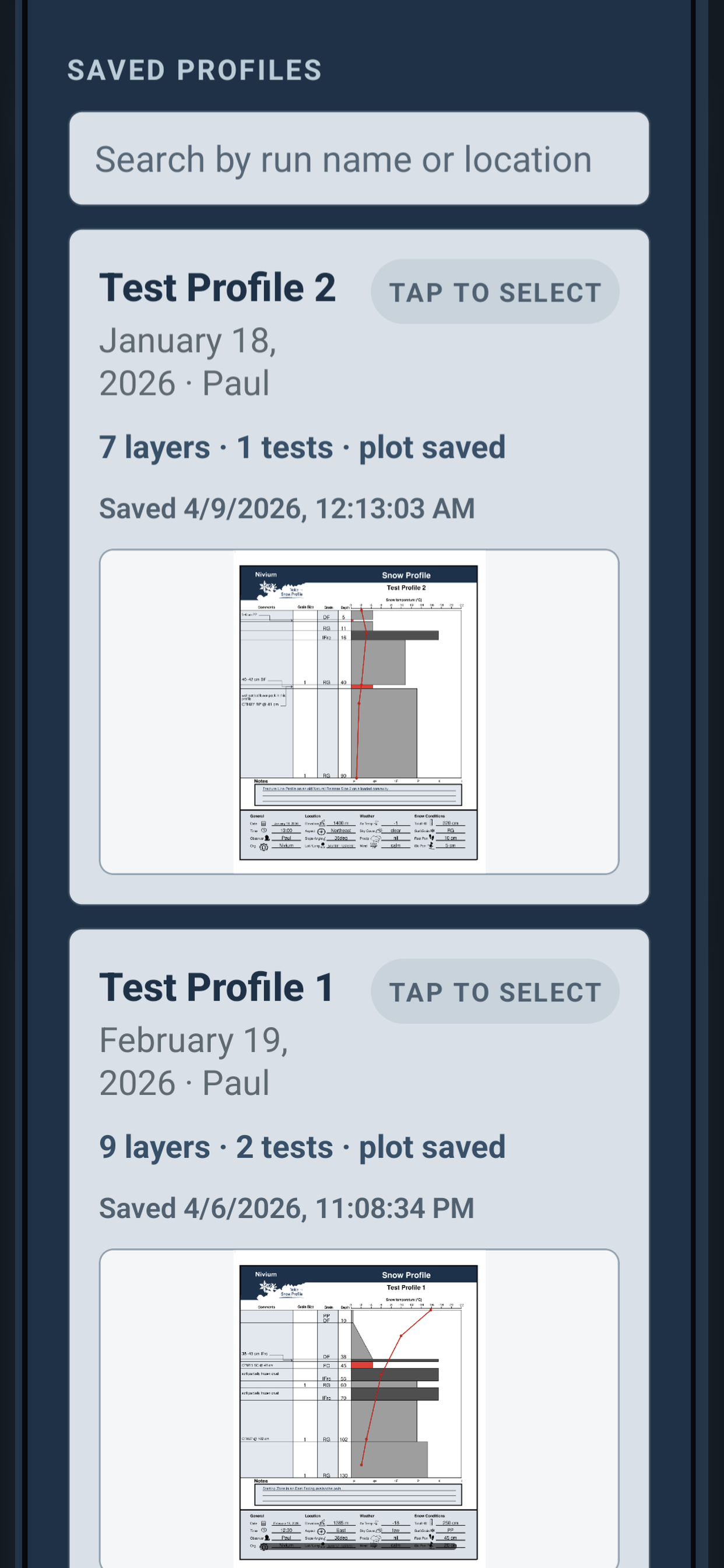
  • In Archive, you can open the profiles you have already saved.
  • You can share, print, or edit them later.
  • If voice processing or rendering needs a connection, your saved work stays in Archive so you can retry later.
Nivium Archive screen with saved profiles and actions.

Download

Get Nivium

iPhone is available now. Android is still in testing. If you want free Android tester access, use the Android Testing page.